Free online document scanner
Scan documents to a searchable PDF, free.
On Android
Scan from your phone with the free app
Free, with no ads. Cleanup, text recognition and PDFs all happen on your phone, even offline, and your scans are never uploaded. Unlimited scanning with a free account.
Get the free Android appAdd pages
Upload files you already have, or capture pages with a camera.
Pick several at once. Each page of a PDF becomes its own page here.
No pages yet
Add photos, scanned images or a PDF. You can crop, rotate and brighten each page before you make the file.
How it works
From a photo to a file you can search.
- 01
Add pages
Upload photos, scanned images or a PDF, or capture pages with your camera.
- 02
Tidy them up
Crop the edges, rotate, and adjust brightness or contrast. The preview shows what you get.
- 03
Pick the finish
Clean, color or crisp black and white, balanced or high detail, as one PDF or as JPG or PNG images.
- 04
Download
The PDF is straightened, compressed and given a text layer, so you can search and copy the words.
Your pages
Nothing is kept.
JPG and PNG downloads never leave your browser. To make a searchable PDF, the pages are encrypted in transit and processed in Ademero's Google Cloud with Google Document AI, then discarded. The images and the recognized text are not stored, and you do not need an account.
We count anonymous usage, such as whether a PDF was made, how many pages it had, its size and its quality check. Those counts never include your document, its file name or its contents.
Guide
How to scan a document to PDF
Pick the way that matches what is in front of you. Each one ends with the same thing: one PDF whose words you can search and copy.
With your phone
Best for a few pages wherever you are. Works on iPhone and Android in the browser.
- 01Open this page on your phone, choose Use camera, then tap Take a photo. Your camera opens.
- 02Photograph the first page. Tap Take a photo again for each next page, in reading order.
- 03Tap a page in the list to crop it to the paper edges, rotate it, or brighten it.
- 04Leave the finished file on PDF and tap Create searchable PDF. It saves to your downloads.
With a computer and webcam
Handy at a desk with no scanner. Works in Chrome, Edge, Firefox and Safari.
- 01Choose Use camera, then Start camera, and allow camera access when the browser asks.
- 02Hold the page flat in front of the webcam. Drag the frame over the page and pull its corners to the edges.
- 03Press Capture for each page. Use Rotate first if the page shows sideways. The camera stays on between pages.
- 04Choose PDF and press Create searchable PDF.
With a scanner you already have
For flatbed or copier scans that came out as plain images or image-only PDFs.
- 01Scan with the scanner or copier as usual, to JPG, PNG or PDF.
- 02Choose Upload files and pick them all at once. Every page of a PDF becomes its own page here.
- 03Remove blank pages and fix any that came out sideways.
- 04Press Create searchable PDF to get one compact file with text you can search.
No pages yet? Go back to the scanner and start with the first page.
Tips
Six habits for a clean, readable scan
A phone photo can look as good as a flatbed scan. Most bad scans come from light, angle and background, not the camera.
- 01
Fill the frame with the page, then crop the rest
The scanner keeps whatever is in the picture. Crop off the table, your fingers and the background before you make the PDF, so the page fills the sheet.
- 02
Use even light and skip the flash
Daylight from a window or a bright room light works best. A flash leaves a shiny patch that hides words, and a lamp behind you puts your shadow on the page.
- 03
Hold the camera straight above the page
The scanner straightens a page that is slightly rotated, but it cannot fix a photo taken at a steep angle, where the far edge looks smaller than the near one.
- 04
Hold still and let it focus
Tap the page on your screen to focus, rest your elbows on the table, and take the photo once the text looks sharp.
- 05
Flatten folds and curls
Press folded letters flat under a book for a minute. Curved lines of text are harder to read for people and for text recognition.
- 06
Read the quality note
After the PDF is made, the scanner reports problems it noticed, such as blur, glare or text cut off at the edge. Retake those pages in better light.
Which finish to choose
Clean turns the page into sharp grayscale with stronger contrast, which suits most paperwork. Crisp B&W pushes the contrast further so faint print stands out. Color keeps every color as it is.
Balanced keeps pages at up to about 220 dpi on an A4 sheet for a smaller file. High detail keeps up to 300 dpi, which helps with fine print and small table text.
| Your document | Page appearance | PDF detail |
|---|---|---|
| Typed letters, contracts, printed forms | Clean | Balanced |
| Small print, dense tables, footnotes | Clean | High detail |
| Receipts, faint print, carbon copies | Crisp B&W | High detail |
| Photos, colored forms, stamps, blue-ink signatures | Color | Balanced |
Scanning several pages into one PDF
- Add pages in reading order. The PDF follows the order of the page list. If a page lands in the wrong place, remove it and the pages after it, then add them again in order.
- Fix many pages at once. Ctrl+click (Cmd+click on a Mac) to select several pages. Rotation, crop, brightness and contrast then apply to all of them.
- Up to 10 pages per PDF. For a longer document, make it in parts. If the upload is too large, choose Balanced or fewer pages.
- Remove blank backs. When you upload a two-sided scan, delete the empty pages before you make the PDF.
On Android, the free app captures page after page in one go, finds the edges for you and lets you reorder pages before you export.
What makes a PDF searchable
A plain scan is only a picture of words. A searchable PDF keeps that picture and adds an invisible layer of the recognized text, placed exactly over each word. You still see the original page, but your computer can now find, select and copy the words.
What you can do with it
- Press Ctrl+F (Cmd+F on a Mac) in any PDF reader to jump to a word or number.
- Copy a reference number, address or paragraph instead of retyping it.
- Find the file later with search tools that read the text inside PDFs.
How to check it worked
Open the PDF and search for a word you can see on the page. If it is not found, that page was too dark, blurry or small. Retake it in better light, or choose High detail.
Already have image-only PDFs from a copier? Upload them here and they come back searchable.
Bigger jobs
Which scanner fits the job
This page is built for a few pages at a time. If you scan more than that, one of these will save you real time.
| If you need | Use |
|---|---|
| A few pages right now, on any device, with nothing to install | This free online scanner |
| You scan with an Android phone often, want it to work offline, and want pages to stay on the phone | Document Scanner by Ademero, the free Android app |
| Stacks of paper on an office scanner every day: invoices, claims, HR files, records | CapturePoint 6 on a Windows PC |
Scanning on your phone often
Document Scanner by Ademero is a free Android app with no ads. It finds the page edges, straightens the perspective, reads the text and makes searchable PDFs on the phone itself, even offline. Your scans are not uploaded. You can scan three pages before you create a free account, which unlocks unlimited scanning.
Scanning stacks at the office
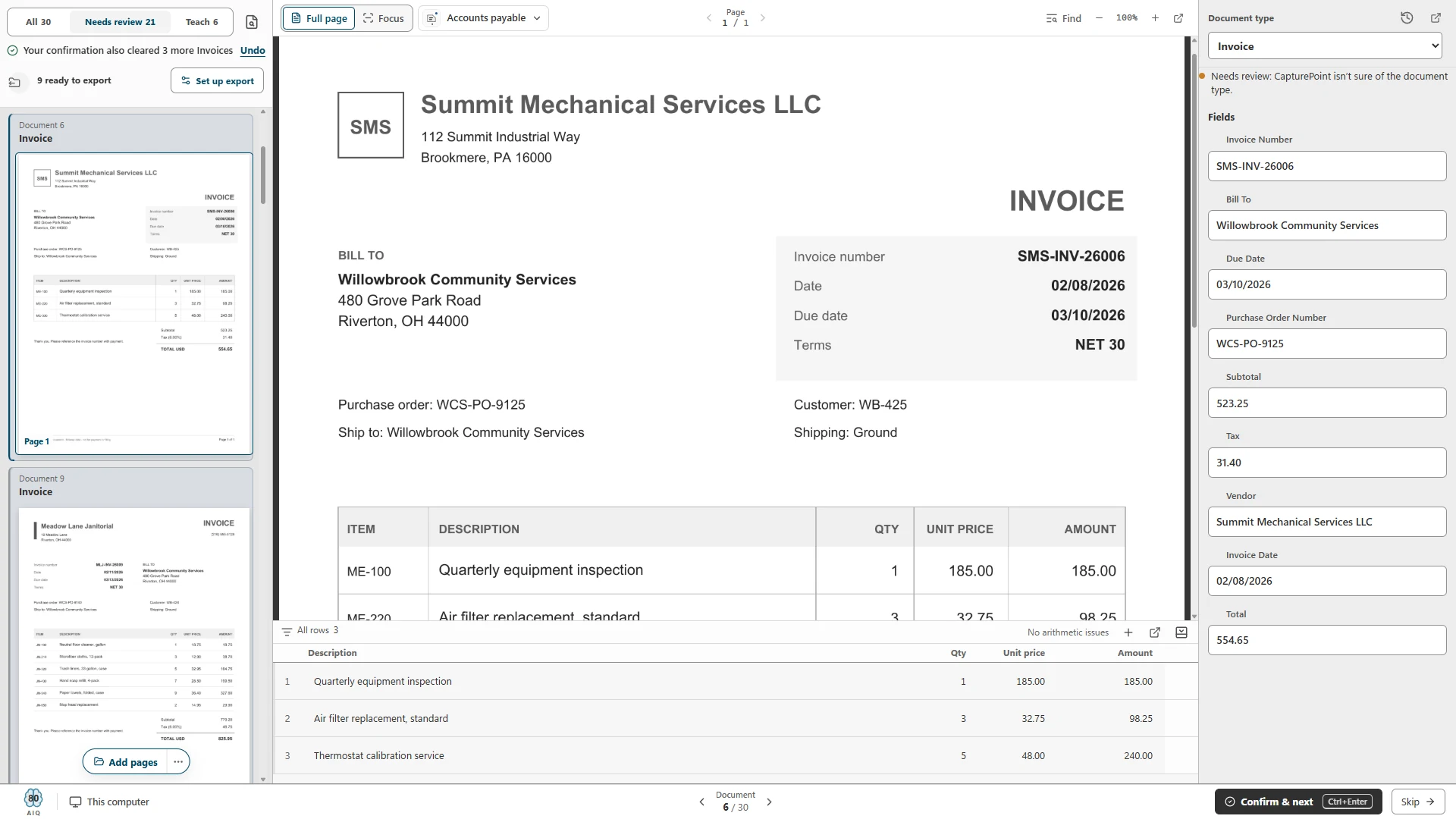
With a stack of paper, the scan is the easy part. The work is splitting it into separate documents, naming each file, typing dates and totals into another system and filing it in the right place. CapturePoint 6 does that on your Windows PC. It works with TWAIN scanners or imports PDF and image files, splits a stack into documents, recognizes what each one is, pulls out fields such as invoice numbers and totals, and saves named, searchable PDFs to folders, SharePoint or OneDrive, Google Drive, Dropbox, Content Central or Nucleus One. The reading happens on the PC, and the free trial starts the first time you open it, with no form.
Questions about the free scanner
Is this document scanner really free?
Yes. There is no account, no trial period and no watermark on your PDF. To keep it fast for everyone, each PDF holds up to 10 pages and there is an hourly page limit per connection.
Do I need to install an app?
No. The scanner runs in your web browser on a phone, tablet or computer, including iPhone, Android, Windows, Mac and Chromebook. To use a camera, allow camera access when your browser asks. If you scan on an Android phone often, the free Document Scanner by Ademero app adds automatic page detection and works offline.
Are my documents uploaded or stored?
JPG and PNG downloads are made in your browser and never leave your device. To make a searchable PDF, the pages are sent encrypted to Ademero’s Google Cloud, read with Google Document AI, and discarded. The images and the recognized text are not stored.
How many pages can I put in one PDF?
Up to 10 pages, and about 10 MB of pages in total. For a longer document, make it in parts, for example pages 1 to 10 and 11 to 20. If the upload is too large, choose Balanced instead of High detail or use fewer pages per PDF.
Can I edit the text in the PDF?
Not directly. The PDF shows your original page as an image with an invisible layer of recognized text on top, so you can search, select and copy the words. To edit, copy the text into a document editor.
Which languages does the text recognition read?
Text recognition is tuned for English and Spanish, and the text layer works best with languages written in the Latin alphabet.
What page size is the PDF?
Each page is centered on an A4 page without stretching. To print on US Letter paper, choose fit to page in your print settings.
Does the scanner work offline?
Adding and editing pages happens in your browser, but making the searchable PDF needs an internet connection. The Android app does everything on the phone, even offline.
CapturePoint 6 free trial
Scanning stacks every day? Let your scanner do the sorting.
CapturePoint 6 is cutting-edge local AI on your own PC. It splits, sorts, reads and names every document, then files it to SharePoint, OneDrive, Google Drive, Dropbox, folders, Content Central or Nucleus One. The free trial starts the first time you open it, with no form.